


2018 School Spending Survey Report
Easy screencasting your iPad and iPhone (on the Mac side)
I learned a little trick for creating screencast videos from my iPad and I thought it might be useful for many of you who have a regular need to demo apps. If, like me, you are working on a Mac, you probably already know how powerful your QuickTime Player is for making impromtu videos or [...]
I learned a little trick for creating screencast videos from my iPad and I thought it might be useful for many of you who have a regular need to demo apps.
If, like me, you are working on a Mac, you probably already know how powerful your QuickTime Player is for making impromtu videos or desktop screencasts and exporting them. (Of course, you can do any fancy post production in a video app later, but QuickTime is sooooo handy.)
So here’s what I didn’t know. If you upgrade your Mac to to OS X Yosemite, you can use the QuickTime Player to record the screen action on your iPhone or iPad.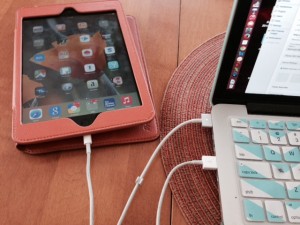
Here are the easy steps:
1. Connect your device to your Mac using your Lightning to USB (charging/syncing) cable.
2. Open your QuickTime Player (You can do a quick Spotlight search for it using Command and space key and hitting return.)

3. In Quicktime, select the New Screen Recording option.
4. Look for the little arrow to the right of the red record button.
 5. In the pull-down, choose either your iPhone or your iPad as the source camera. Select your preferred microphone to record your narration audio.

6. After you are satisfied with your recording, use File -> Export in QuickTime Player and save your screencast in .mov format.
7. Upload your video to YouTube or Vimeo to post and get embed code.
Here’s the little screencast I made for yesterday’s post:

Added To Cart
RELATED


RECOMMENDED
CAREERS
The job outlook in 2030: Librarians will be in demand
CAREERS
The job outlook in 2030: Librarians will be in demand
ALREADY A SUBSCRIBER? LOG IN
We are currently offering this content for free. Sign up now to activate your personal profile, where you can save articles for future viewing
ALREADY A SUBSCRIBER? LOG IN
Thank you for visiting.
We’ve noticed you are using a private browser. To continue, please log in or create an account.
Add Comment :-
Be the first reader to comment.
Comment Policy:
Comment should not be empty !!!